This email was translated using machine translation. Please forgive us for any inaccuracies.
Okta Passcode Enrollment Instructions
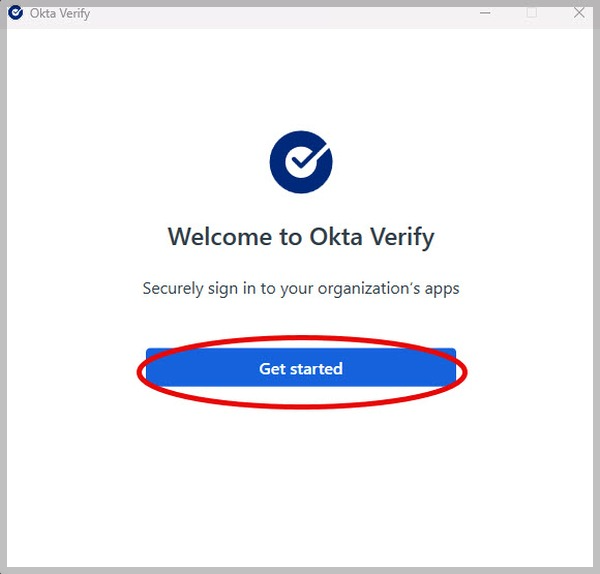
Step 1: From your computer, open the Okta Verify for Windows app by selecting the Start menu and searching for “Okta Verify.” Select the app to launch it, then choose Get started.
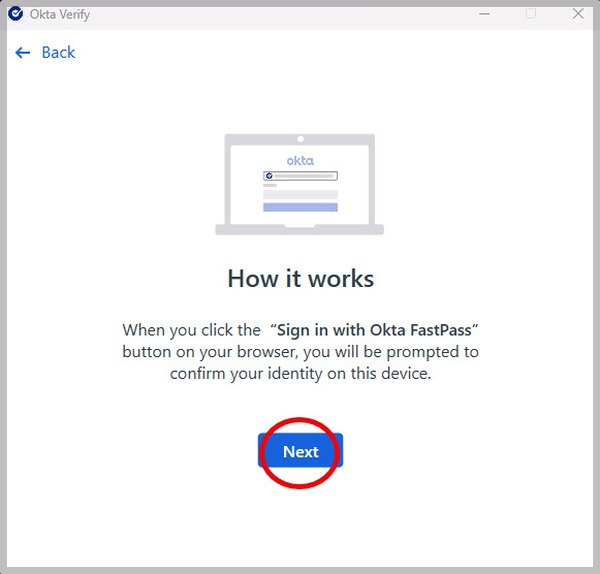
Step 2: On the next screen, click on the Next button.
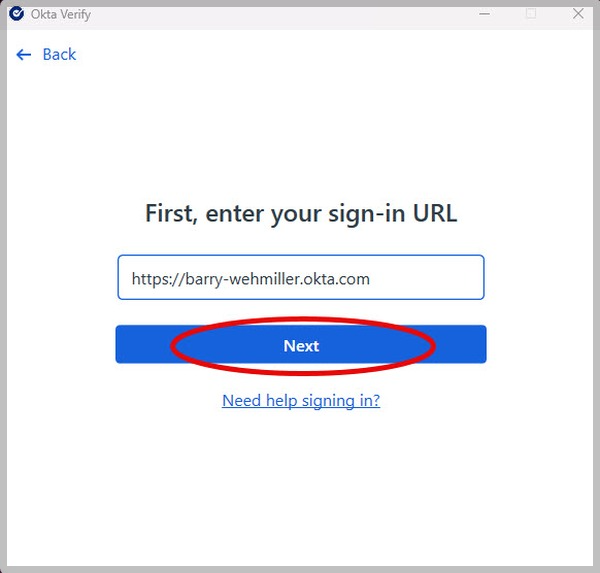
Step 3: On the next screen, click on the Next button again.
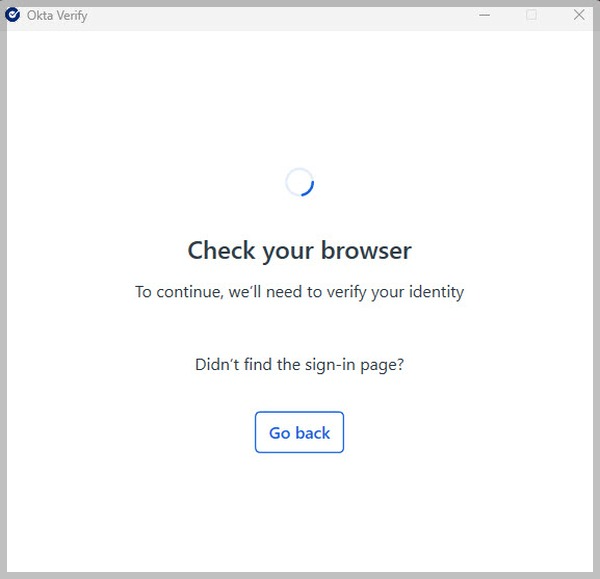
Step 4: A new browser window will open, asking you to enter your credentials. Enter your credentials.
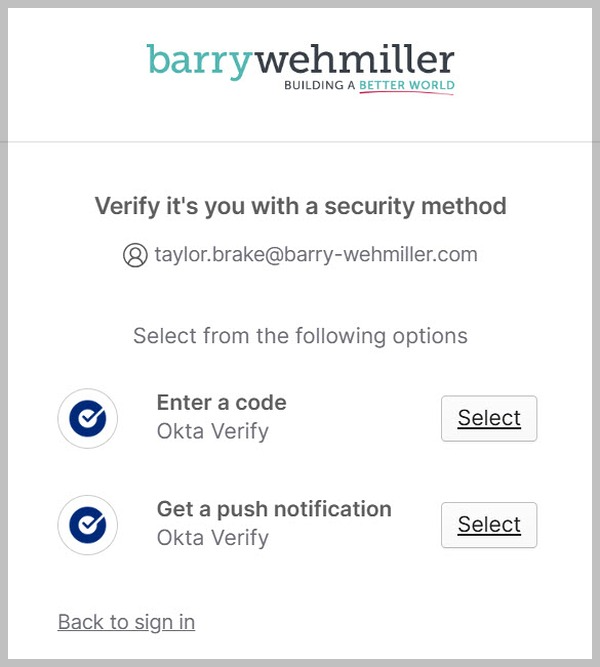
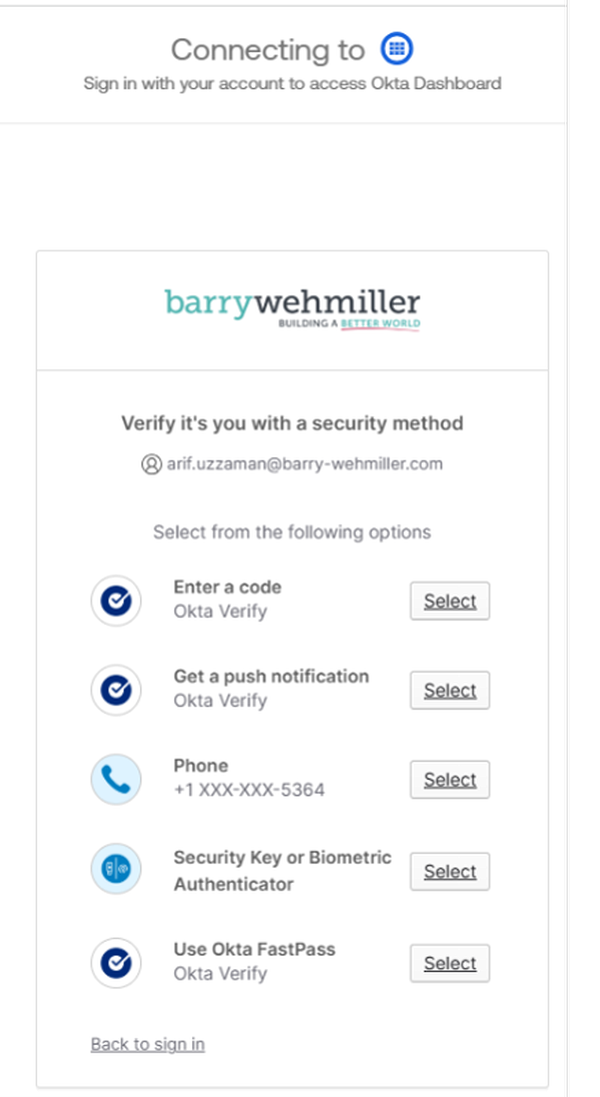
Step 5: Choose one of your existing MFA methods to verify your account. (Your screen may display more options than shown in this example.)
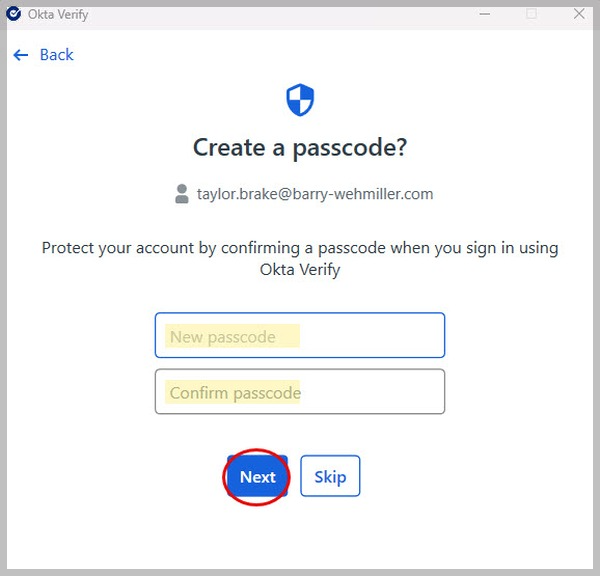
Step 6: When prompted, enter your new Okta Passcode. It must be a minimum of eight digits. Then click "next."
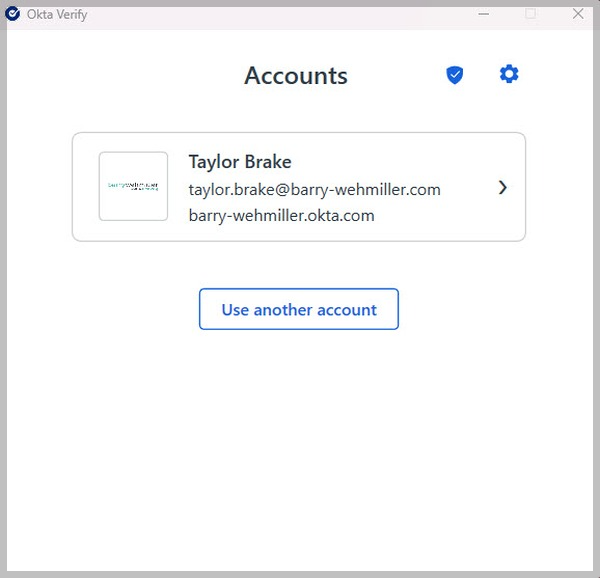
Step 7:This is the end of the Okta Password Enrollment process. Your account will look like this once you have completed the account enrollment.
Step 8: Use Okta Passcode for the first time
Open any browser and sign in to a system that requires MFA.
After entering your network password, a verification window will appear.
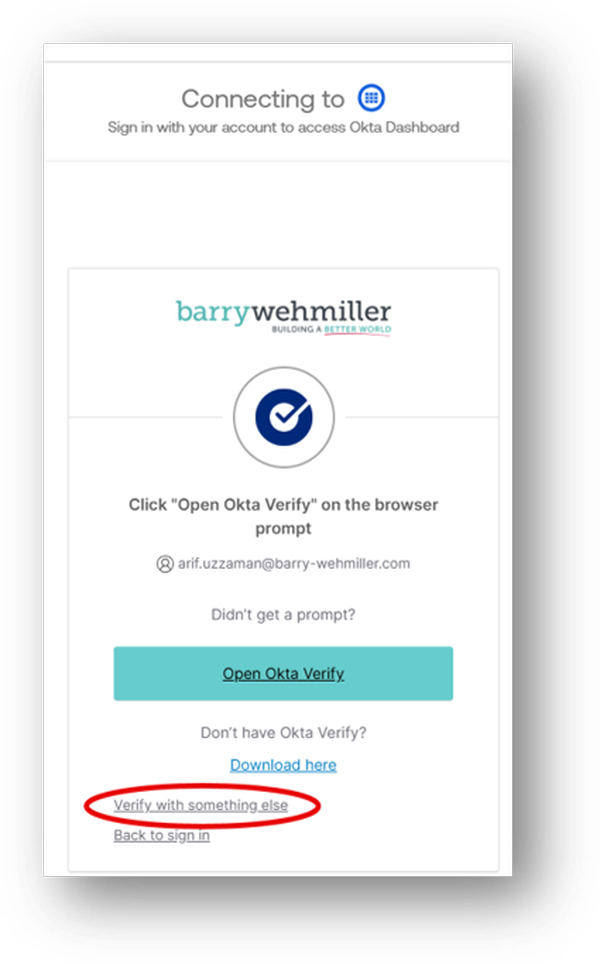
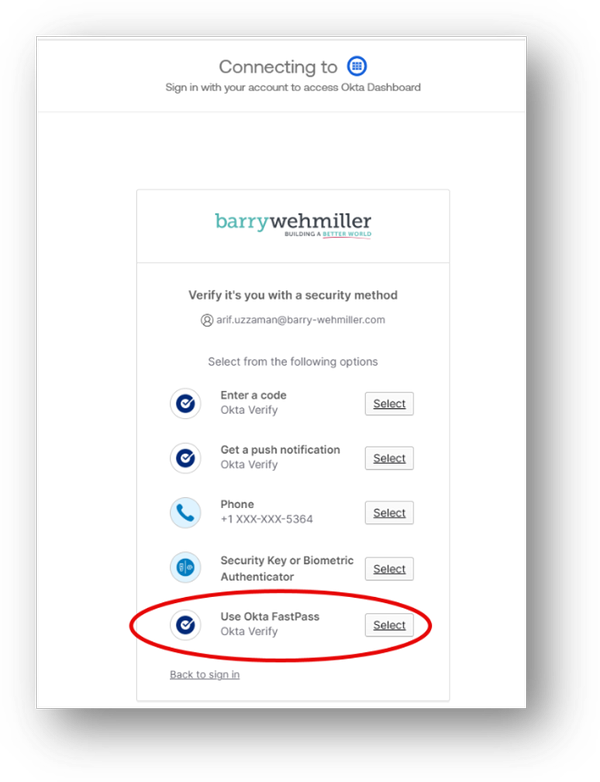
Select “Verify with something else,” then choose “Use Okta FastPass.” NOTE: Do this even if you are going to ultimately use a different MFA method that Okta Passcode. More details on using another MFA option are below.
IMPORTANT: ACCESSING OTHER MFA OPTIONS
If you prefer to use a different MFA method instead of Okta Passcode:
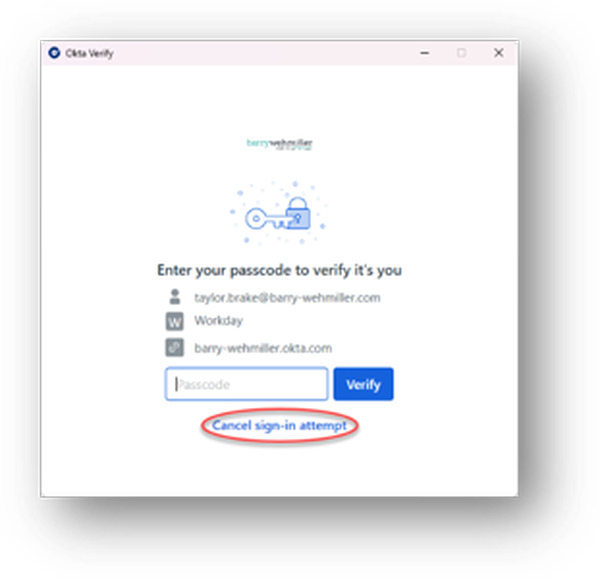
After your first use, Okta Passcode becomes the default sign-in method. When you see it during sign-in, select Cancel sign-in attempt (see example below), then choose another MFA option.
You are not required to use Okta Passcode if you prefer another method. However, the Security Question option will be retired in the future. You’ll receive advance notice, but we strongly recommend switching to a different MFA method now to avoid disruption (especially if Security Question is your only option).
This is an internal IT team email and is not intended for external distribution.