This email was translated using machine translation. Please forgive us for any inaccuracies.
Okta Passcode Enrollment Instructions
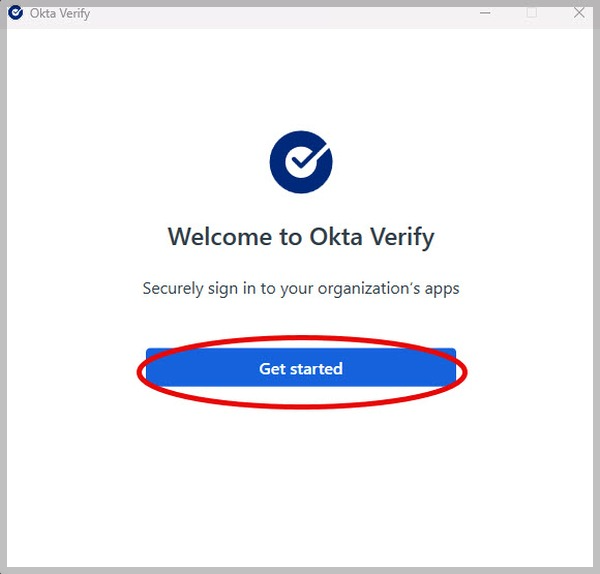
Step 1: Open the Okta Verify for Windows application by going to the Windows start menu and then searching for Okta Verify. Once the application has started, click on the Get started button.
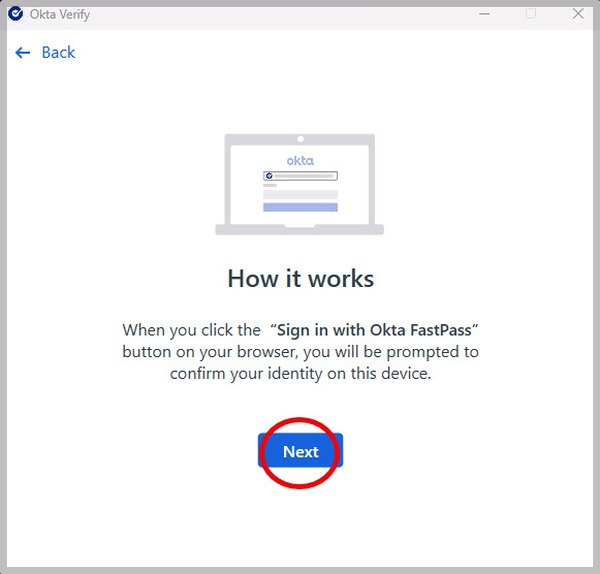
Step 2: On the next screen, click on the Next button.
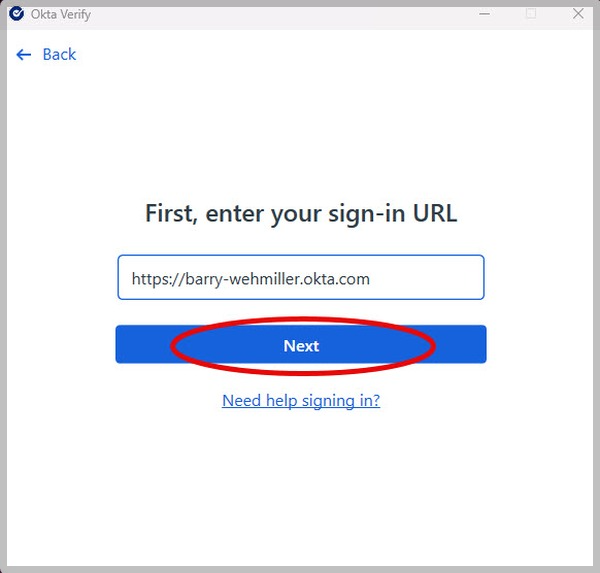
Step 3: On the next screen, click on the Next button again.
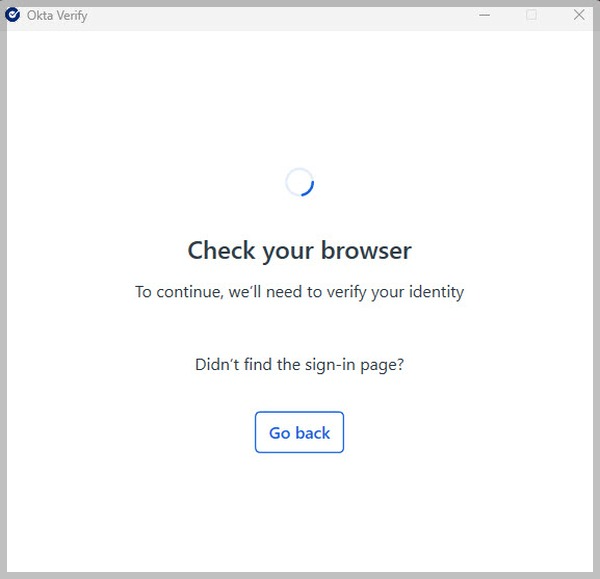
Step 4: A new browser window will open, asking you to enter your credentials. Enter your credentials.
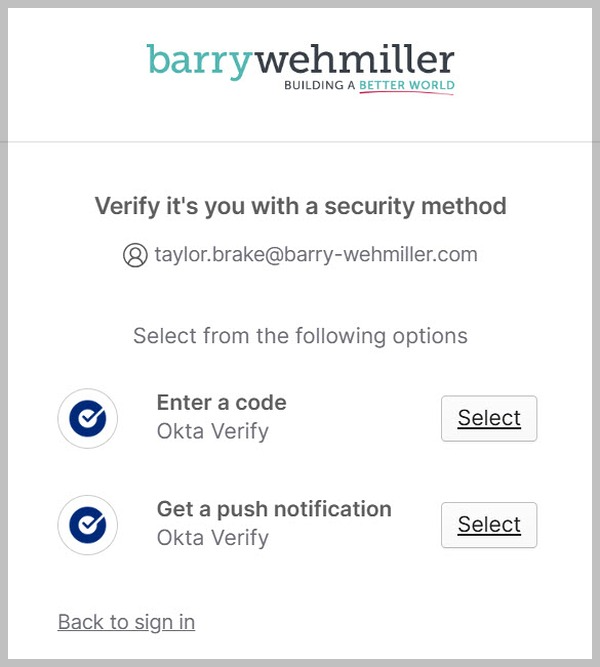
Step 5: Choose one of your existing MFA options to verify your account.
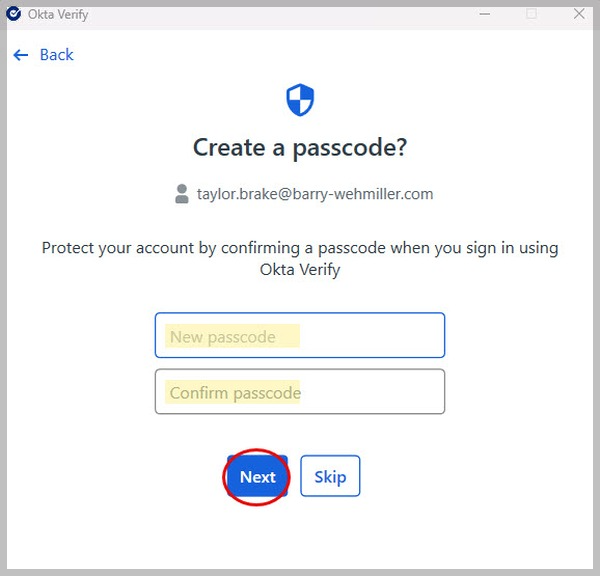
Step 6: When prompted, enter your new Okta Passcode. It must be a minimum of eight digits (and no letters or special characters).
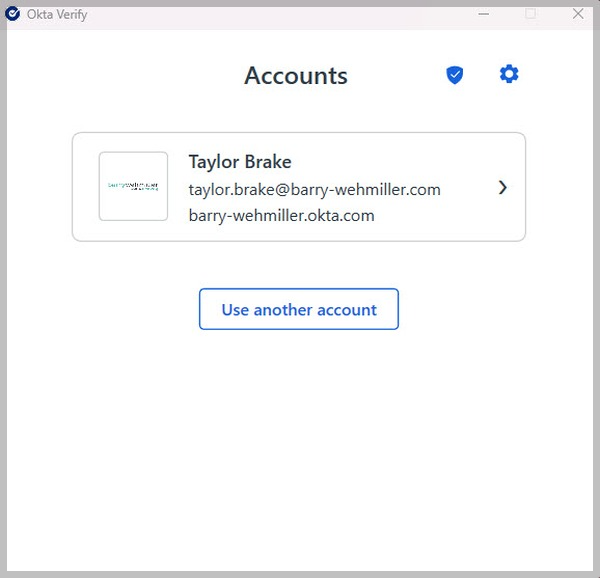
Step 7:This is the end of the Okta Password Enrollment process. Your account will look like this once you have completed the account enrollment.
This is an internal IT team email and is not intended for external distribution.